Showing posts with label Tutorials. Show all posts

05 June 2011

Increase Corby's performance and battery life


Nowadays, everything is controlled by machines. Sometimes machines do not perform nicely because of wear and tear. Same is the case with Corby. Sometimes, its necessary to fix up some bugs which decrease the functionality of the phone. In this article, I am going to show you, how you can make your corby faster and bug free to improve speed and maintain proper functioning of the phone. Lets get started.

Corby’s RAM is not so large. If lots on eye candies are enabled, it can use up all the memory space. So, Follow these steps to reduce the GUI features which would increase speed.

  1. Use a basic theme such as Black / Green / Red.
  2. Don’t use picture as Menu background. This causes great lag while using the phone. [To change settings, go to Menu > Settings > Display and Light > Style > Current Theme]
  3. Use Type 2 Fonts.
  4. Don’t use lots of Widgets at once. Use upto 1 / 2 widget at a time.
  5. Don’t use Gesture Unlock. [Menu > Settings > Smart Unlock > Gesture Touch – OFF]
  6. Use Auto Lock Touch Panel. [Menu > Phone Settings > Touch Panel auto-lock – ON]
  7. Change Backlight time to 8 secs.[Settings > Display and Light > Backlight time]
  8. Always free up Phone Memory. 
  9. Don’t use Touch Sounds or Vibration feedback. 
  10. Don’t keep multiple types of files in 1 folder. Instead make different folder for different types of files. 

If you follow the above steps, your battery and cellphone life will be improved and phone’s functionality will also improve. If these steps don’t help, then, you can try hard formatting your phone. So, what are you waiting for? Just go ahead and try these now!

NOTE: We love Corbies, we won’t hurt them!

Tags: samsung corby increase performance, top ten tips for corby, 10+ tips and tricks for increasing corby speed, increase corby speed.

04 April 2011

Run upto 5 applications at a time. More Multitasking!


I was playing with my corby today and found an amazing thing! I was browsing the internal settings of corby and found lots of things. And the most amazing hidden feature that I found was multitasking options.
Normally Corby supports upto 3 applications to run at a time. But many people want always more. So, I found a way through which you can run more than 3 Java applications or games. Proceed in the following way:
1. Go to keypad.
2. Enter *#5239870*# in the keypad. Admin settings page will appear.               
3. Now, there would be 5 options – Software Version || Pre-Configuration || Network & Call settings ||Internals || Feature settings
4. Tap on the 4th option – | Internals |
5. Now, the screen will ask for the Master Key.
6. In this screen, enter *#7092463*# as the key. Press OK
7. Now, lots of options will appear. 8.Tap on the 7th option - ||Java settings||
9. Now, tap on ||VM setting||. A window will appear.
10. Tap on ||MVM MIDlet max count||.
11. By default, the radio button would be in No. 3.
12. Now, tap on ‘5’ . Then ‘Select’
13. Now, you will return back to VM Settings window. Here, select |Save|
14. Now, all is set. Your phone will show “VM Settings saved. Phone will reboot automatically.”
15. It’s done! Enjoy with multitasking.

(Don’t mess around with the options. Please follow the procedures that we give to be on the safe side. If you do something wrong, you will seriously mess up your phone. It may ‘die’ ! )


Tags: run upto 5 apps on corby, multitasking on corby, samsung corby s3653 blog, samsung corby free games, corby 5 apps at a time

02 April 2011

Setup Exchange ActiveSync (Using Gmail)

Who doesn’t know about web today? In fact all know! We use it daily for email, instant messaging, information retrieving and what not! We can do everything on internet. But, when internet was first introduced to people, it mostly focused on Electronic Mail.
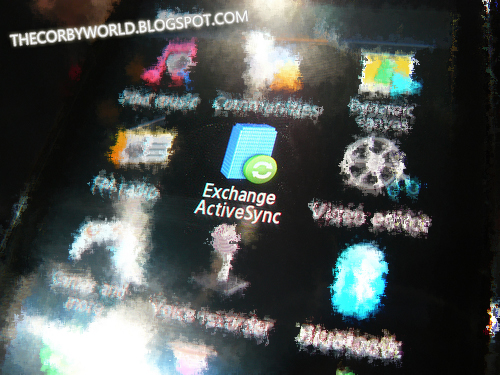
But now, things have changed. We now use portable devices which offer flexibility and ease of carrying devices. So, it is necessary to setup some important things. Your Corby comes with an inbuilt app, really necessary yet powerful. It is Exchange ActiveSync. Many people don’t know what it is! So, I am going to show you how to set it up.


First of all, let us know what it is?

It is a way through which you can sync  your emails, contacts, calendar, tasks, etc stored on the internet server. i.e. your gmail account. This means, your mobile phone will synchronize your mobile data and the gmal account data

Setting up ActiveSync. (NOTE:WE ARE SETTING UP USING GMAIL SETTINGS)

  1. If you are setting it for first time, you will see a setting page once you tap on the icon.
  2. In this page, set the following parameters according to the available labels.
    Server Url: m.google.com
    User Name: Your gmail username along with ‘@gmail.com’ Example-abcd@gmail.com
    Password: Your gmail password
    Domain:google
    Use SSL:OFF
  3. After that tap on ‘Save’  
  4. Now, settings are saved.
  5. Now set the GPRS profile (Access Point)
  6. Now, you can setup  the email settings as your wish is. For example, you can set data range, download settings
  7. It’s done!

Wait, it is not over yet! Corby provides a shortcut app/widget on the home screen too. 
To use it, please follow these steps:

1.Go to the Home screen
2.Tap on the topmost icon in the left column
3.Now, navigate down and search for Exchange ActiveSync.
4. If it is unchecked, tick it.
5.Now click save
6.Now go to home screen again and lookout for the icon of ActiveSync which looks like a Green Sync button above a blue building. (Refer to the topmost picture)
7. Drag it to main screen.
8.You shall see 4 buttons: Sync || Create email || Inbox || Push Start
It’s done now!!!!! Enjoy with Sync!
Widget (Expanded)
Widget - (Compacted)


Note Below:
 1. I used TATA Docomo APN Settings for setup of Exchange ActiveSync. These settings may / may not work with other access points. If it doesn’t work,  please let us know in the comment form
2. Please bear with us if we have printed something wrong.

25 February 2011

Stuck in meeting? Your Corby is coming for rescue!

When you are stuck between people whom you can neither avoid not sustain, what will you actually do? Especially when they start talking unwanted and useless things? You corby will do it for you. If you are stuck in a meeting or in unwanted & useless conversations, your Corby will come to save you. So, wanna know how? Here is the procedure:
  1. Tap the Menu icon.
  2. Tap Settings
  3. Then Tap Application Settings
  4. Then Call > Fake Call
  5. In Fake Call Settings, Click on 'On'.
    This will activate Fake Call
  6. Then click Fake Call Voice > Click 'On'
  7. Then Tap on Voice Recording
  8. Press Record Button and Record your voice while talking to another person. Try to make it more realistic. Ask any of your friends to converse with you as if you are having a conversation over the phone.
  9. Then go back
  10. Click Fake call Timer > Then Select "5 Seconds"
  11. Then Click Save
  12. Your Fake Call Feature Will be activated
HOW TO USE:

On the homescreen, Hold press the Volume Down Button.
An incoming call alert will appear on screen. Press the Answer Button. The recorded sound will be played back to you. That's it, you just have to imitate as if you are really talking on the phone! 
But, I strictly advice you not to skip your meetings!


06 December 2010

Create Your Own Corby Wallpapers

Yes, I know how annoying it is to set wallpapers for Corby. There are basically 2 methods of doing it.:

  1. By using Photoshop
  2. And By using a wallpaper maker.
Today, I am going to show you, how you can also make your own wallpapers for Samsung Corby S3653, OR S3650 (720X320)

STEPS FOR MAKING YOUR OWN WALLPERS FOR CORBY:

Step.1: Download Corby Wallpaper Maker. And Install it. Click here (Mirror-2) to download (1 MB)
Step.2: Run Wallpaper Creator from Start Menu
Step.3: The Wallpaper Creator will open.
Click to enlarge
Step.4: Now, Drag and Drop 3 pictures (each of 240X320 pixels) into the three corresponding trays. See picture:
Click to enlarge
Step.5: Now, click on preview. Then Click on "Save wallpaper"
Click to enlarge
Step.6: That's it! It's complete. Transfer the picture to your phone via USB or Bluetooth. ENJOY!
Click to enlarge


VIDEO TUTORIAL


Tags: create your own corby wallpapers. corby wallpapers, free corby s3653 wallpapers, corby wallpapers, corby samsung, samsung corby videos, samsung corby wallpapers for free.


Twitter Delicious Facebook Digg Stumbleupon Favorites More